🎯 Your mission
Hi, Mobot Engineer! 👋
That's you. It's what everyone who builds a Mobot is called — and in twenty lessons' time, when you finish the championship, you'll get the certificate with that name on it.
Inside that box is a robot that cannot do anything yet.
No moving. No beeping. No seeing. Nothing.
Today you are going to wake it up — and by the end of this lesson, a light on your board will turn on because you told it to.
That light is small. But it is the first thing in your whole life that a robot has done because you said so.
Let's go. 🚀
🎒 What you need
- Your Mobot Smart Car box, unopened
- A computer (Windows, Mac or Linux)
- The USB-C cable from the box
- A clear table
🔋 You do not need batteries today. The USB-C cable carries power as well as your programs, so the board runs happily straight from your computer. The batteries stay in the box until Lesson 9, when the robot is built and needs to drive away from the cable.
🛡️ The safety rules
Read these once, properly. They're the same ones printed in your guidebook.
- This kit has small parts. Keep it away from children under 5.
- An adult should help anyone under 10.
- Never put the connection wires into a wall socket. They are for the board only.
- Keep the robot away from water.
- Use it on a stable, dry, flat surface.
- Always switch the board off before plugging or unplugging a sensor.
- Don't block the wheels or motors while they're running.
- Never press RESET while code is uploading. If you do by accident, unplug, plug back in, and upload again.
💡 The new idea
Every robot in the world has four parts
A racing car robot, a factory arm, a Mars rover, a drone — all of them.
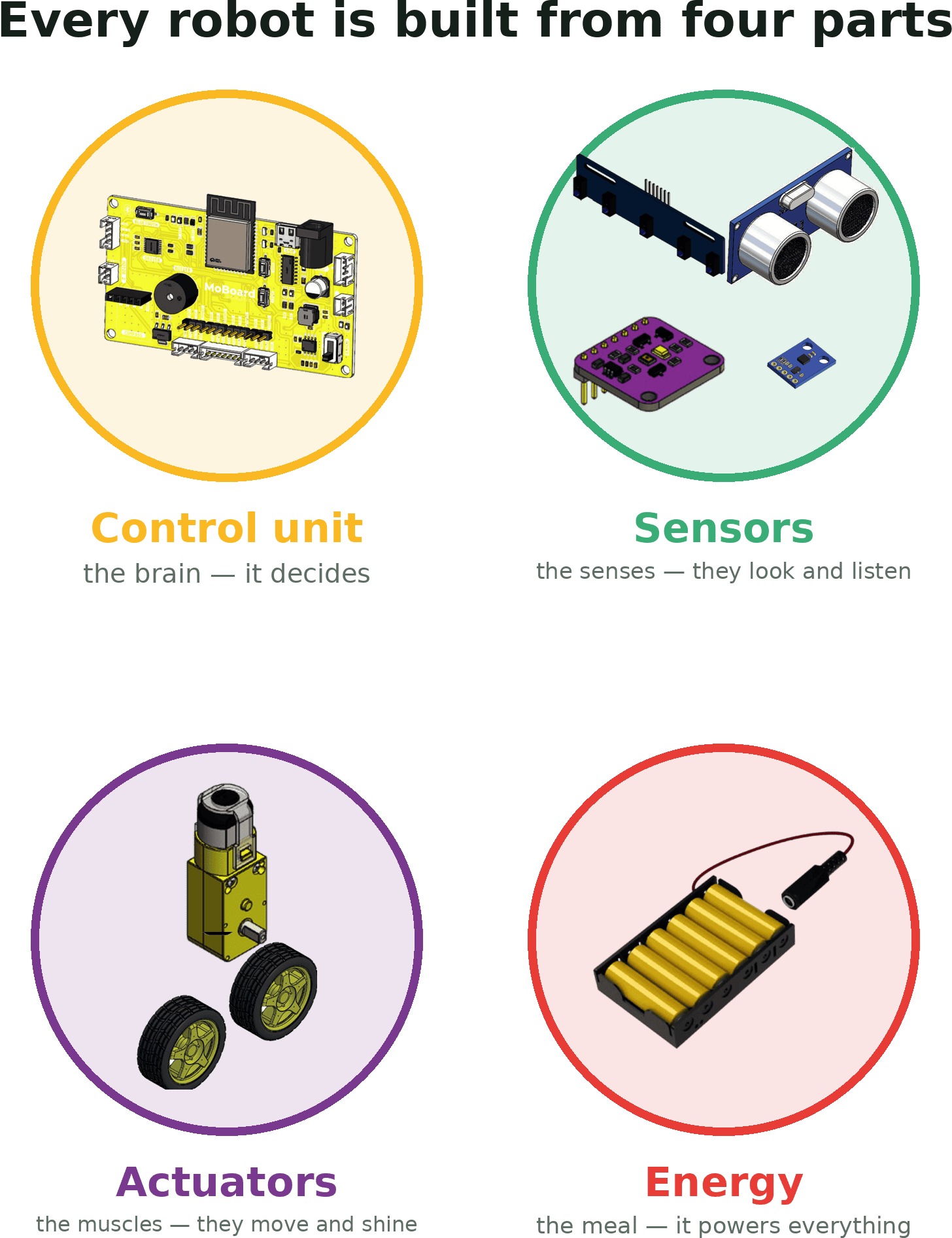
| # | Part | What it does | Think of it as… |
|---|---|---|---|
| 1 | 🟡 Control unit | thinks and decides | the brain |
| 2 | 🟢 Sensors | take information in | the senses |
| 3 | 🟣 Actuators | put something out | the muscles and voice |
| 4 | 🔴 Energy | powers all three | the food |
🧠 This is the map for the whole course. At the top of every lesson you'll see which of the four you're working with that day. By Lesson 9 you'll have met all of them — and then you put them together into a robot.
Now sort your own kit
Tip everything out onto the table. Then put each piece into its group.
Fill this in as you go:
| Part of the robot | What I found in my box |
|---|---|
| 🟡 Control unit | ________________________ |
| 🟢 Sensors | ________________________ |
| 🟣 Actuators | ________________________ |
| 🔴 Energy | ________________________ |
So what is firmware?
Right now the brain does not even know how to listen to you.
Firmware is a one-time gift you give the control unit. It teaches the board how to understand the programs you will send it later.
You only ever do this once. After today, you will never think about firmware again.
🧠 It's like teaching someone your language before you start telling them stories.
🧪 Try the block
Step 1 — Plug Mobot into your computer
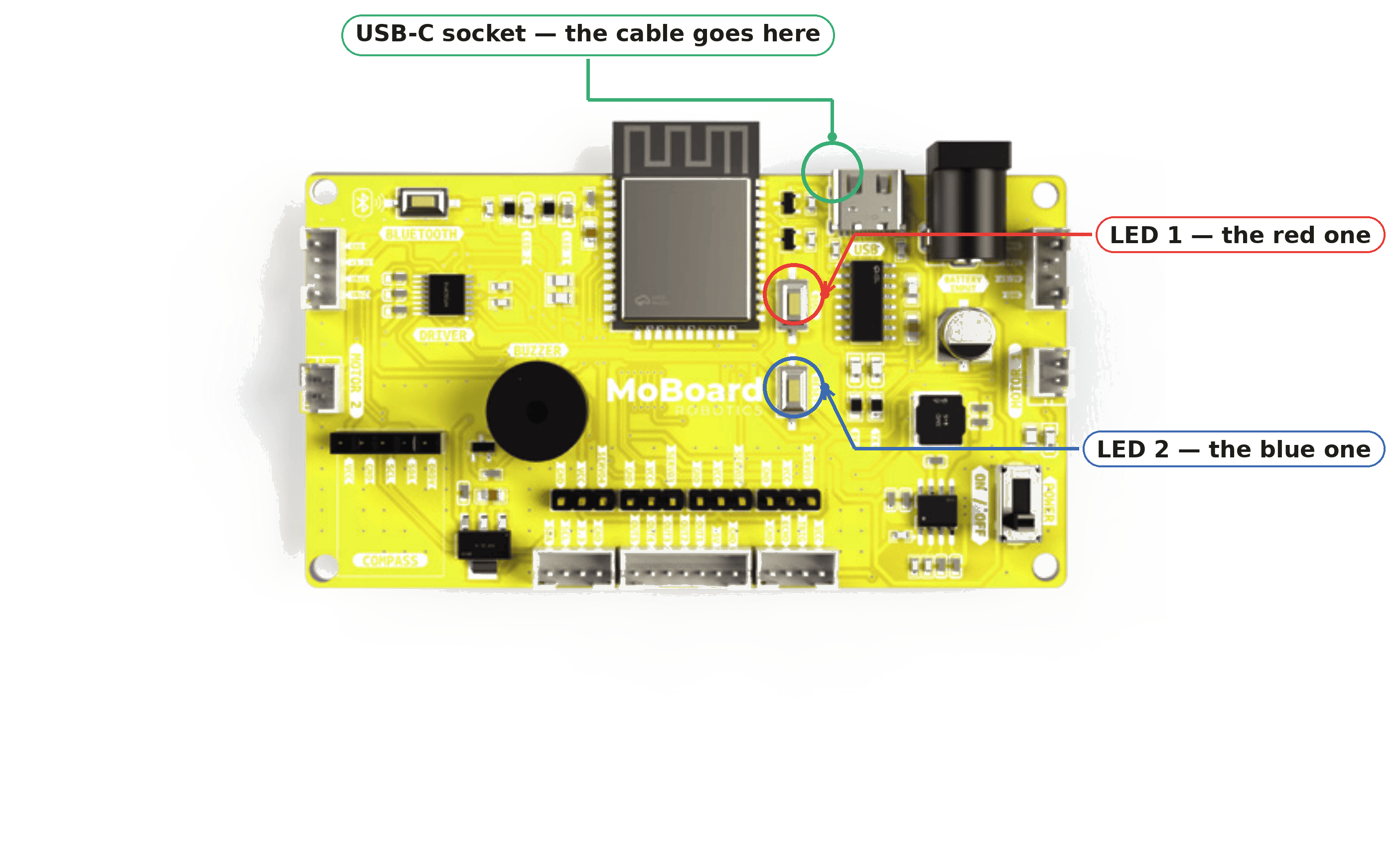
Take the USB-C cable. One end into the MoBoard Robotics, the other end into your computer.
Where does it go? Here it is on the board — and while you're looking, find LED 1 and LED 2 too. They're the two tiny lights you're about to switch on.
🔊 Listen! The board plays a little welcome sound to say hello. That's your first sign it's alive and getting power.
Step 2 — Flash the firmware
Go to flash.mobot.dz in your browser.
1 · Sign in. Click Sign in to Flash and log in with your Mobot account.
2 · Choose your product. Along the top you'll see the products. Click Robotics — "Robotics development board with motor control". Leave the version on latest.
3 · Connect. Click the green Connect button, then pick your board from the little window your browser opens.
When it works, the bar turns green and tells you which chip it found: Connected — ESP32.
4 · Flash it. Click Flash Firmware and watch. Six steps light up one after another:
Connect → Detect → Download → Erase → Write → Verify
5 · Done! 🎉
⚠️ Don't touch the cable while it's flashing. If the cable moves, the flash stops halfway. If that happens, unplug, plug back in and start again — nothing is broken.
Your robot is awake. It cannot do anything yet — but now it can listen.
Step 3 — Open Mobot IDE
Go to ide.mobot.dz.
This is where you will build every program in this course.
Look at the panel down the left-hand side. In the middle of it there's a section called PRODUCT, with four little circles:
IoT · Robotics · Mini · Robotics Formation
Click Robotics. It lights up green. Now the IDE knows which board you have, and shows you the right blocks.
⚠️ Picking the wrong product is the number one reason programs don't work. Check it every single time you open the IDE.
Step 4 — Connect the board to the IDE
Flashing and coding are two different jobs, so you connect again — this time to the IDE.
At the very top of the left panel you'll see:
⚪ Disconnected [ Connect ]
Click Connect, pick your board from the little window, and watch it change to:
🟢 Connected [ Disconnect ]
Notice what happened: the Send to Device button was pale and unclickable. Now it's bright yellow and ready.
💡 Pale button = not connected. If Send to Device looks faded, you skipped this step.
🧰 Meet the toolbox
Down the middle of the screen there's a list of drawers. Each one is full of blocks.
You won't use them all today, but it helps to know they're there — and to know the order, because every lesson tells you which drawer to open.
| Drawer | What's inside |
|---|---|
| 🔍 Search | find any block by typing its name |
| 🎬 Events | the block every program starts with |
| ✥ Movements | the motors |
| 💬 Display and Sound | the LEDs and the buzzer |
| 🌡️ Sensors | line, distance, colour, battery |
| 🔌 Pins | the board's raw connections |
| 🏷️ Serial | showing messages on your screen |
| 📱 Bluetooth | talking to your phone |
| ➕ Addons | the extra parts you can buy separately |
| 🔁 Loops & Control | repeating and waiting |
| 🧠 Logic & Math | deciding and comparing |
| 🔤 Text | working with words |
| 📦 Variables | remembering a number |
| 🧱 My Blocks | blocks you invent |
🧱 That last one is the exciting one. In Lesson 3 you will make your own blocks, with your own names, and use them for the rest of the course.
🤔 Guess first
Here is your very first program. Just two blocks.
Before you send it — what do you think will happen?
Say it out loud, or write it down:
I think the robot will ______________________.
Got your guess? Good. Now find out.
🧱 Build it
- From Events, drag out
Mobot Start. Every program begins with this block. Nothing works without it. - From Display and Sound, drag
Set LED [1] [ON]and snap it underneath.
That's it. Two blocks.
- Click Send to Device.
- Wait for it to finish.
👀 Look at your board.
A light is on. It was off. Now it is on. Because of you. 🎉
🚀 Run the mission
Mission 1 — Make both eyes open
Can you make both LEDs turn on?
You already know everything you need. Add one more block and change its number.
Mission 2 — One eye open, one eye shut
Now make LED 1 on and LED 2 off.
Try it before you look at the answer.
🎉 You just made a robot wink.
Mission 3 — 🌗 The dimmer switch
Look in Display and Sound again. There's a second LED block, and it's cleverer:
Set LED [1] to ( 1 ) %That number is brightness, from 0 to 100.
0= completely off50= half bright100= as bright as it goes
The first block only knew ON and OFF. This one knows everything in between.
Try this:
Send it. Two lights, both on, but one brighter than the other.
Now experiment:
| Try | What I saw |
|---|---|
| Both at 100 % | ______________________ |
| Both at 10 % | ______________________ |
| LED 1 at 100, LED 2 at 5 | ______________________ |
| Both at 0 % | ______________________ |
🧠 This is a big idea, quietly. Some things in the world are only ON or OFF — a switch, a door. Others have a whole range in between — a dimmer, a tap, a volume knob. Your robot can do both. You'll come back to this in Lesson 19.
🔧 It's not working — let's fix it
Always check these four first:
- Is the USB-C cable pushed all the way in? Both ends — the board and the computer. That cable is what powers your robot right now, so a loose cable means a dead robot.
- Did you press Connect? Top left of Mobot IDE. It must say 🟢 Connected, not ⚪ Disconnected.
- Is the right product chosen? In the PRODUCT panel on the left, Robotics must be the one lit up.
- Did you click Send to Device? And wait for it to finish.
And for this lesson:
| What's happening | Why | What to do |
|---|---|---|
| No welcome sound when I plug in | The board isn't getting power | Try the other end of the cable, or a different USB socket on the computer |
| My computer can't find the board | The cable might be a charging-only cable | Use the cable that came in the box. Some phone cables carry power but no data |
| Send to Device is pale and won't click | You haven't pressed Connect yet | Press Connect at the top left. It must turn green |
| The flashing stopped halfway | The cable moved during the flash | Unplug, plug back in, and flash again. Nothing is broken |
| Nothing happens when I send the code | The Mobot Start block is missing | Every program must begin with it. Check it's at the very top |
| The LED number doesn't change anything | Both blocks are set to the same LED | One should say 1, the other 2 |
😌 Everybody gets stuck on lesson one. It's the hardest lesson in the whole course, because nothing is familiar yet. Lesson 2 is easier. Promise.
🌱 Make it easier
Just get one light on. That's a complete success for today. Two lights, winking and dimming can all wait.
🔥 Make it harder
Challenge 1 — The fade. Using only Set LED [1] to ( ) %, build a stack that goes 10, 30, 50, 70, 90. What happens when you send it? (Something surprising — you'll understand exactly why in Lesson 2.)
Challenge 2 — Explore the drawers. Open every category and find one block that sounds interesting. Write its name down. See if you can guess which lesson you'll meet it in.
Challenge 3 — Sort a different robot. Think of a machine at home — a washing machine, a lift, an automatic door. Can you name its control unit, its sensors, its actuators and its energy?
🏅 Badge & what's next
You earned: 🔌 Robot Awakener
☑ Learned the four parts every robot has ☑ Sorted your own kit into the four groups ☑ Flashed the firmware at flash.mobot.dz ☑ Opened Mobot IDE and chose Robotics ☑ Connected the board to the IDE ☑ Wrote a program and made a light turn on ☑ Discovered the brightness block
👉 Next up
Your robot can turn a light on. But one light is a bit boring.
Next lesson you'll make it blink like a firefly, flash like a police car, and play a tune — and you'll learn the single most useful block in all of programming.
Lesson 2 · The Light and Sound Show 💡🎵
📝 Quick quiz
Get every answer right to open the next lesson. You can try as many times as you like.
Your progress is kept in this browser. Sign in to find it everywhere.